My watchlist used to be a graveyard.
Shows I meant to get to, seasons that weren't out yet, movies still in theaters: all in one long row I scrolled past every night.
So I built the watchlist I wanted. Anything I can't watch yet stays hidden until I can.
Get it free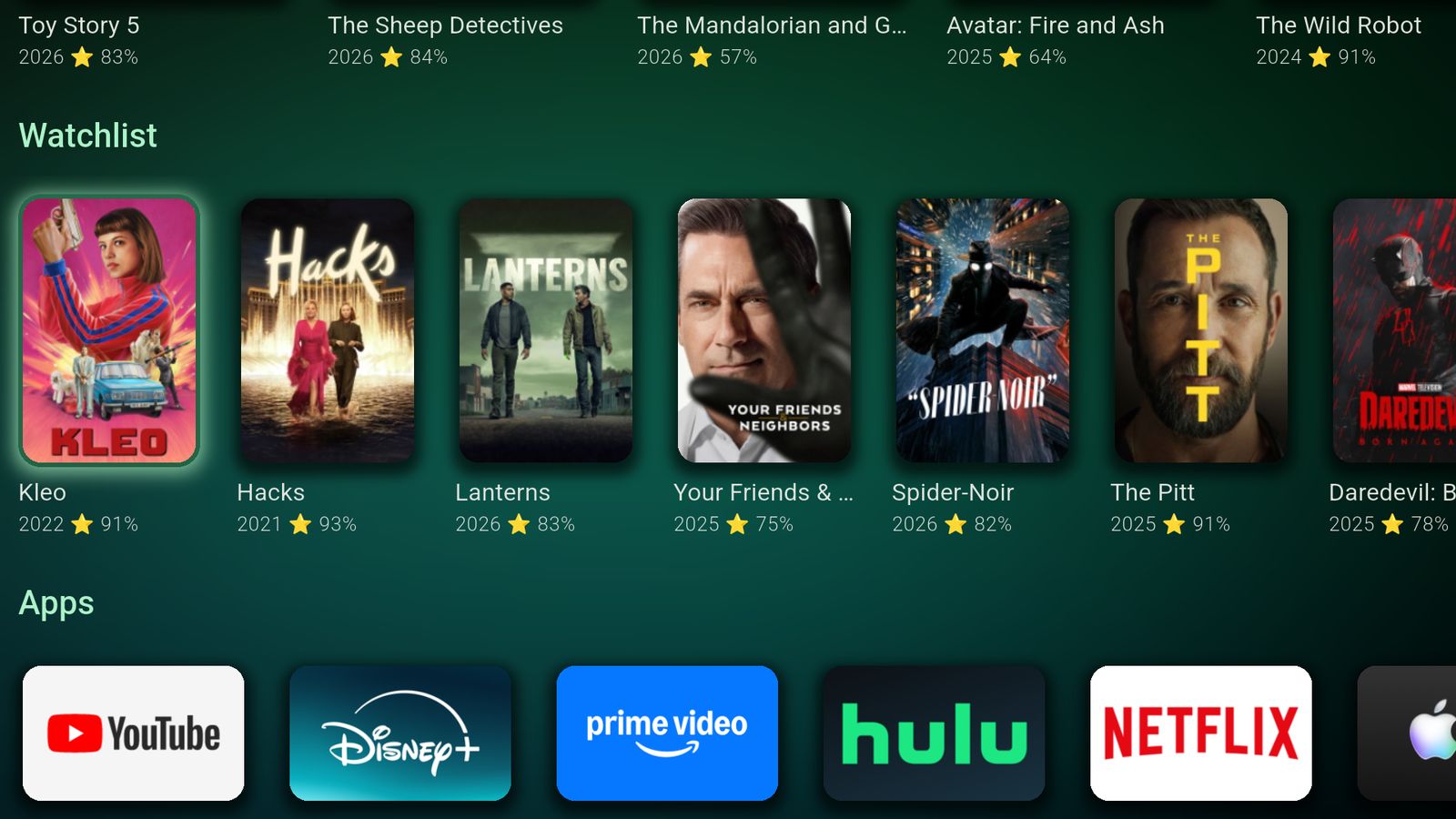
How it works
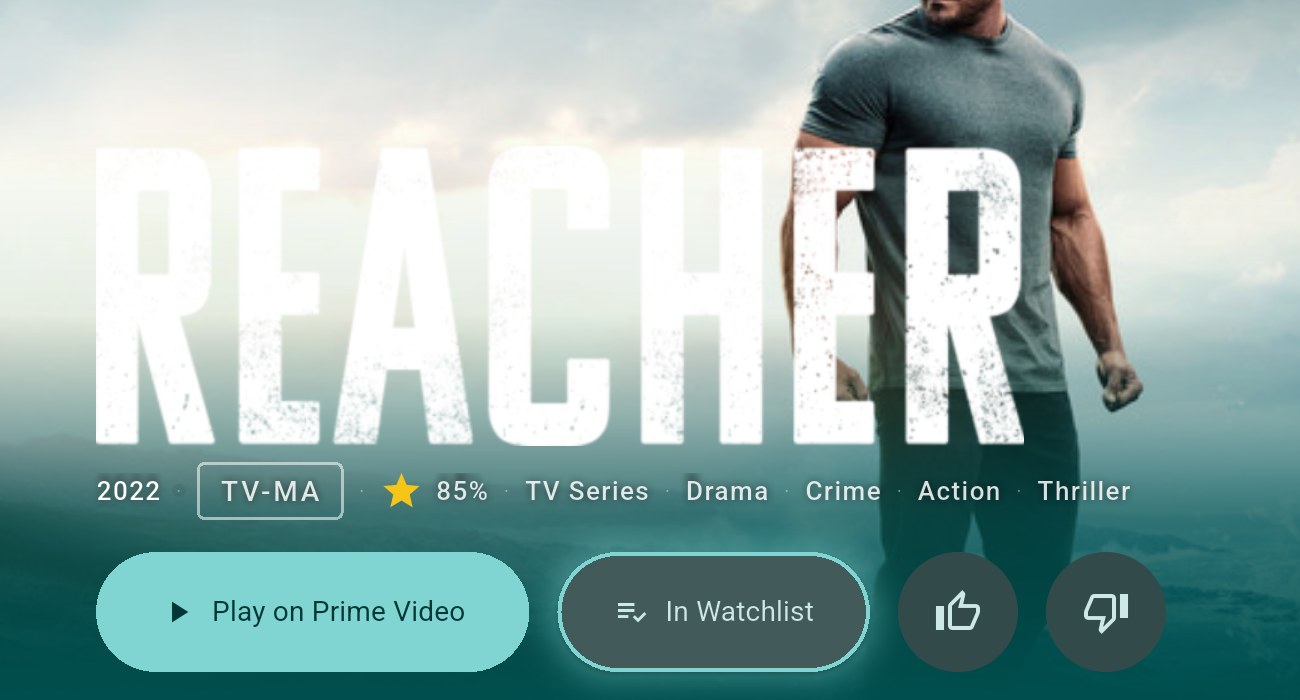
Put it on your watchlist
Open any title and select Watchlist. From a row, hold Select on your remote (or press and hold on a phone) and choose Add to Watchlist. New titles go to the front.
Put it in order
I rank mine, so whatever I want to watch next is first. Hold Select on a card and choose Reorder, or just drag it on a phone.
Hide it until there's something to watch
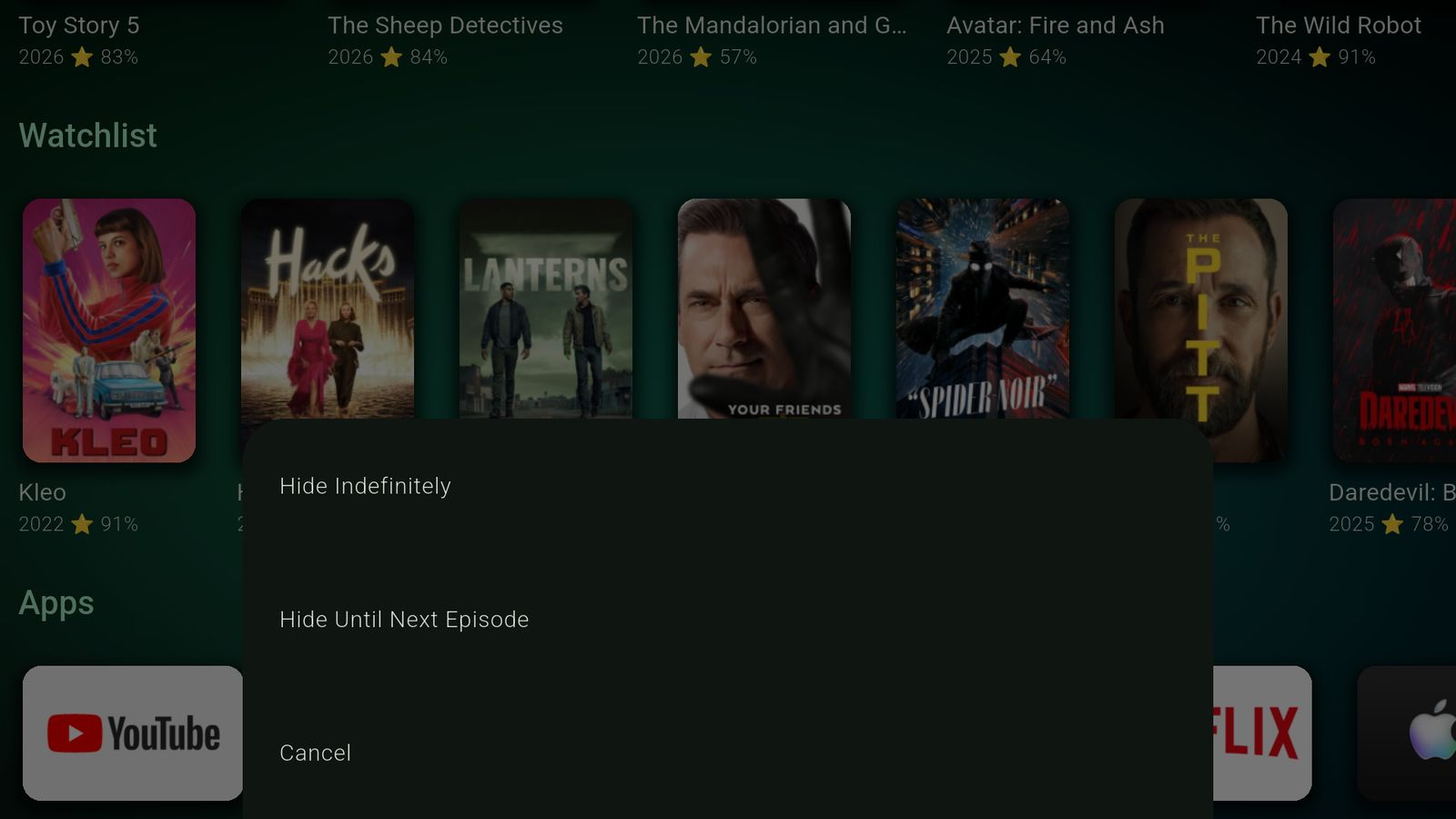
This is the part I use most. Choose Hide from Watchlist, then Hide Until Next Episode. The show drops out of the row and comes back on its own when a new episode is out.
A movie that isn't streaming on your services yet can wait the same way, until it is.
Hear about it when it's back
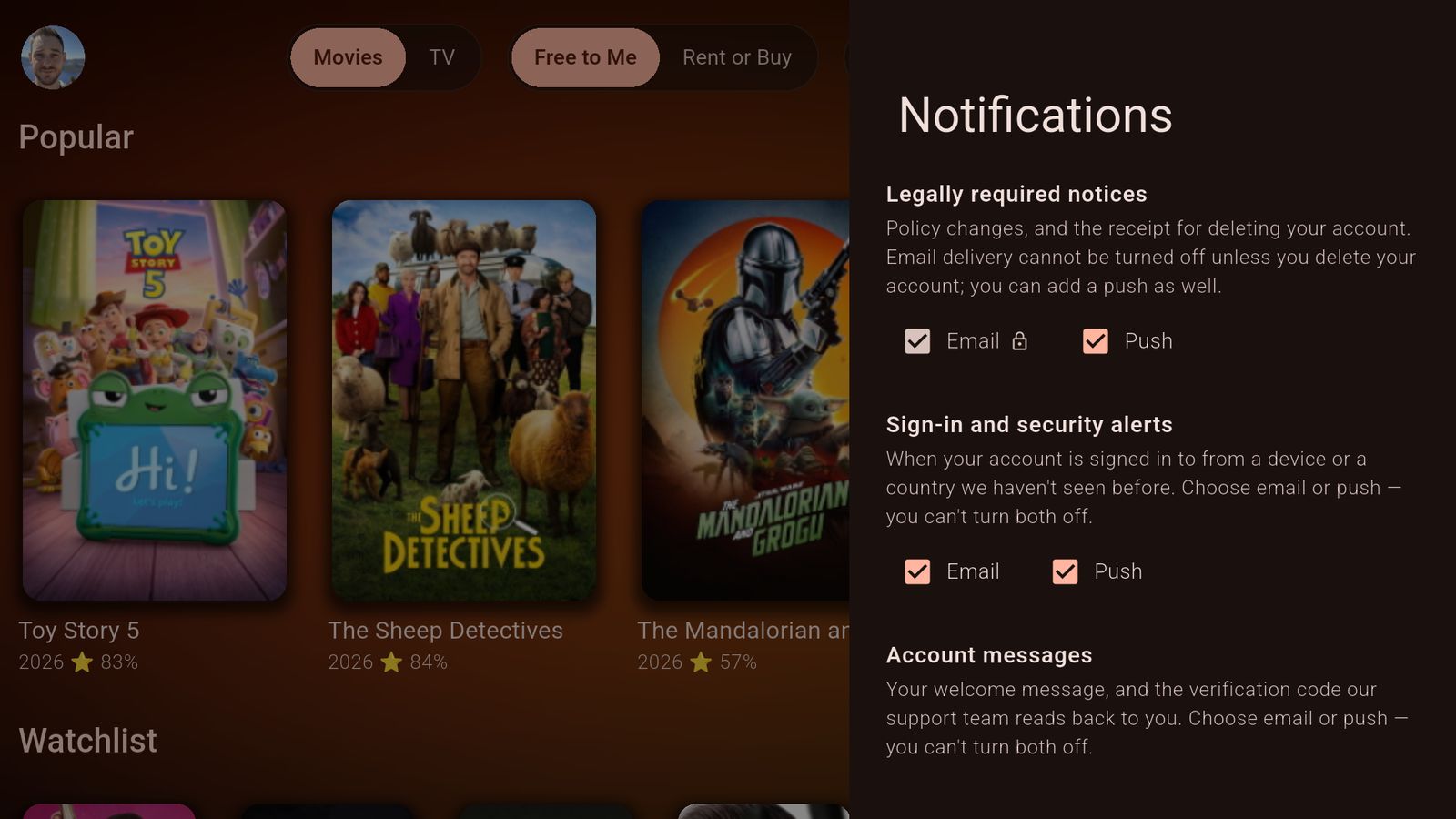
Turn on watchlist alerts in Settings → Notifications and Bitflinger TV tells you when a hidden show has a new episode, or when a title starts streaming somewhere you can watch it. Push, email or both.
Hidden isn't gone, either: Filters → Show Titles I've Hidden brings them back into view.
The watchlist, hiding, reordering and alerts are all free, and your list follows you to every device you sign in on.
More of why I built it
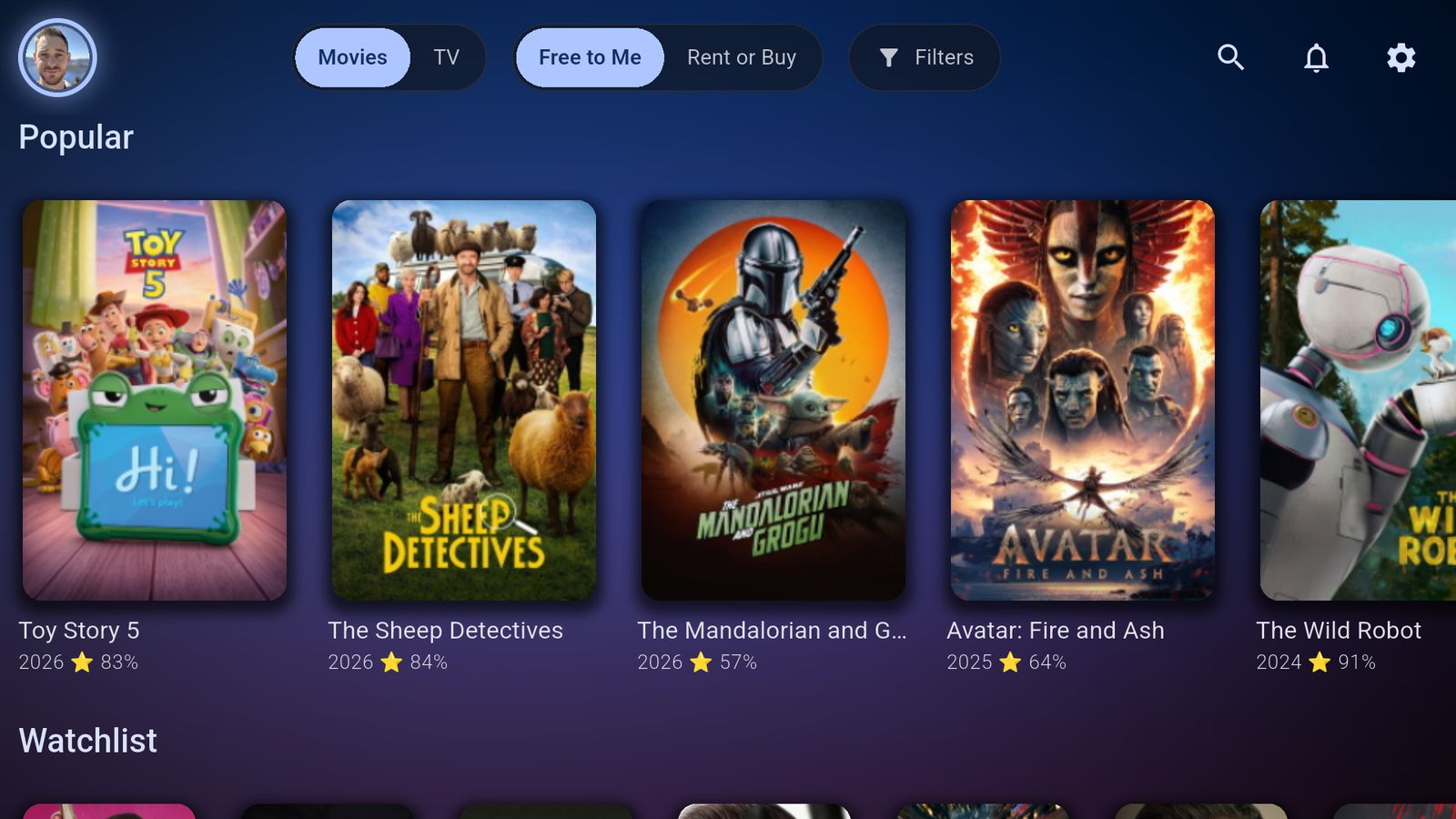
Only show me what I already pay for.
Tick the services you have and every row keeps to what you can watch tonight.
Read more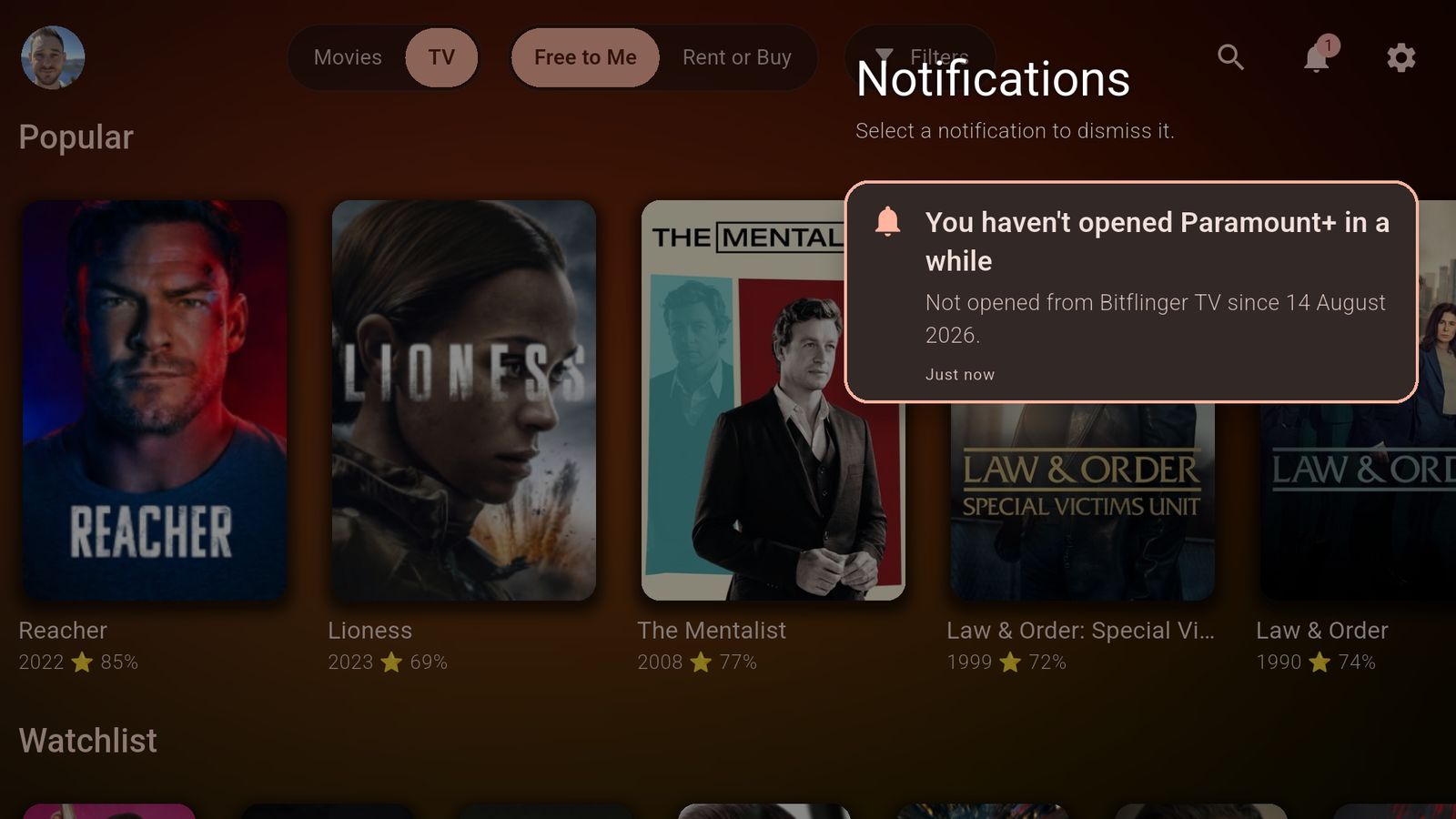
I paid for a service I'd stopped watching.
Once a month it asks about the services you haven't opened.
Read more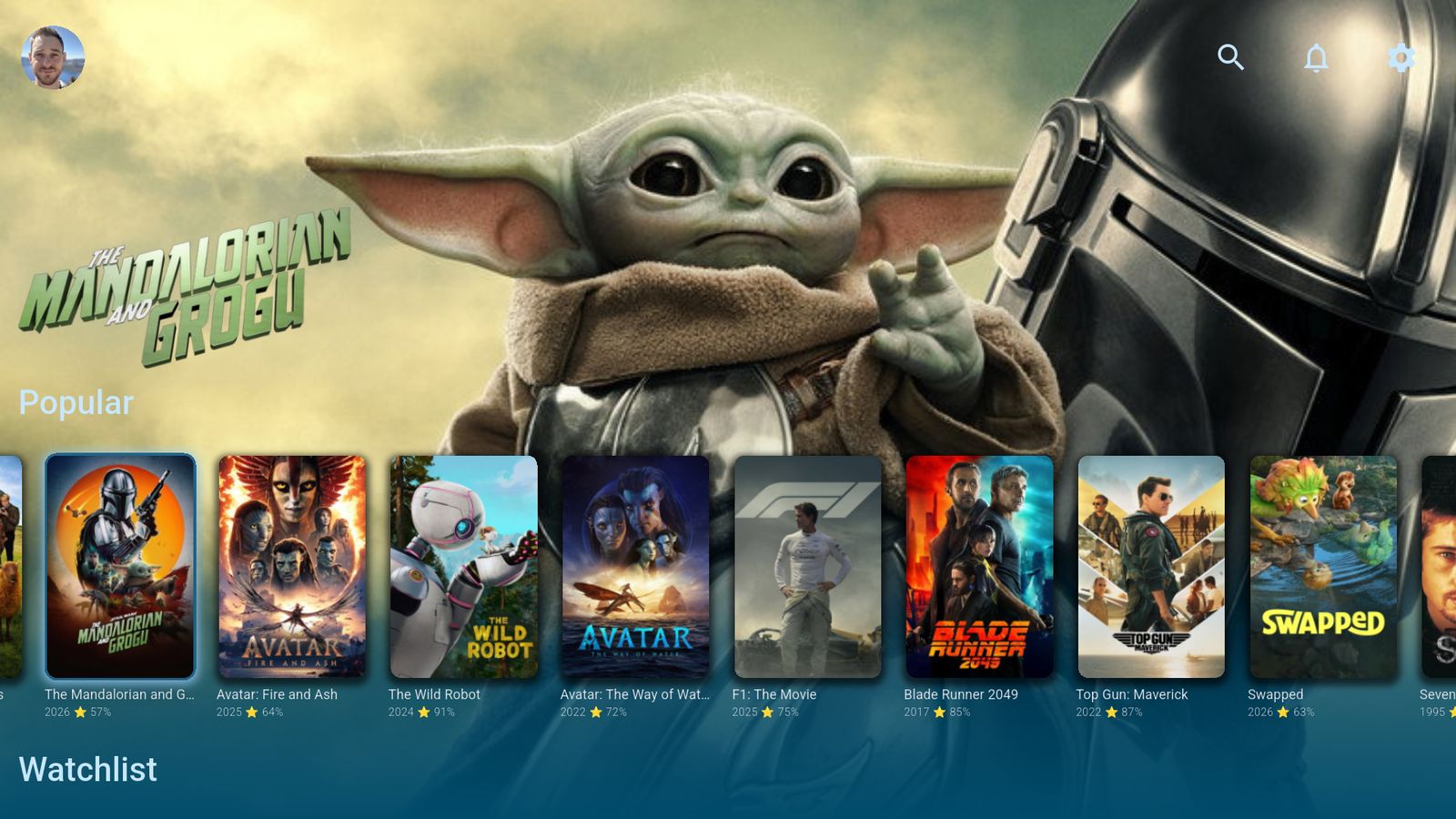
Streaming services can't buy a spot here.
No ads, no paid placement, no finger on the scale.
Read more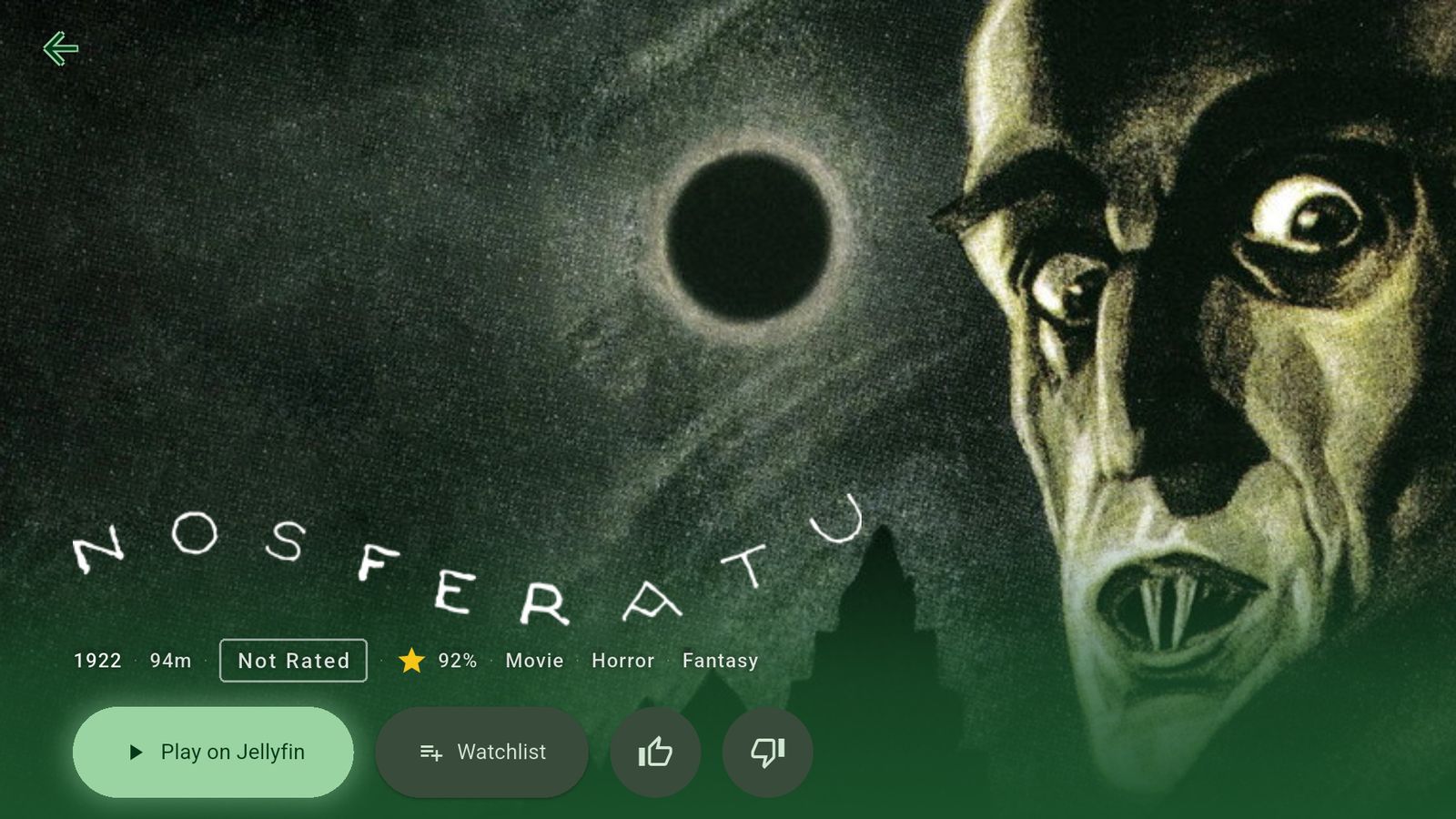
Plex, Jellyfin and streaming. One set of rows.
Your own library next to everything else, and Play goes straight to your server.
Read moreTry it tonight. It's free.
Free on Apple TV, iPhone, iPad, Google TV, Android TV, Android phones and the web.
No card, no countdown. What a subscription adds