Only show me what I already pay for.
Every streaming service wants to show you everything. I'd rather see the fifty things I might actually watch.
So I tick the services I have, turn on Free to Me, and never turn it off.
Get it free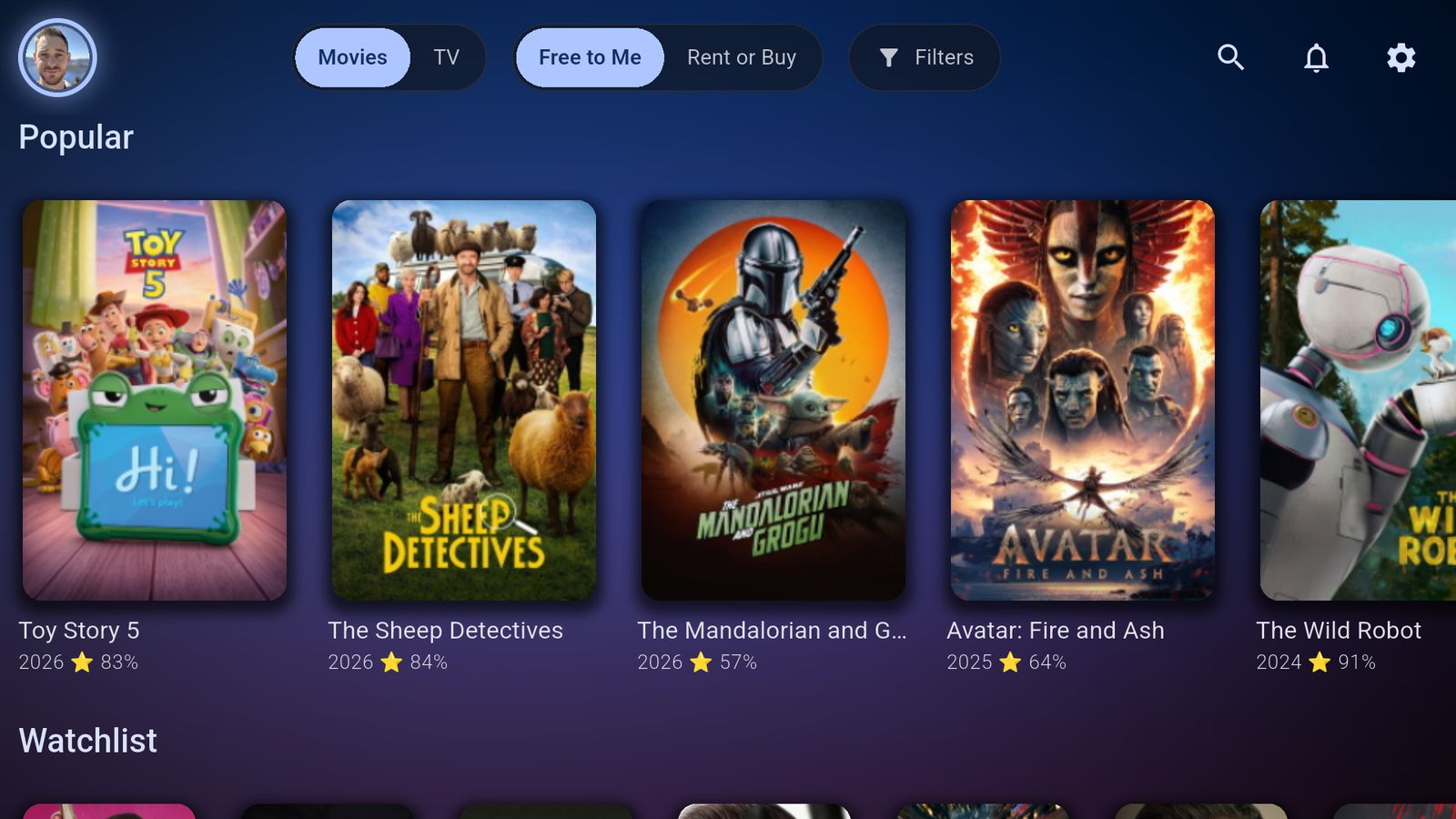
How it works
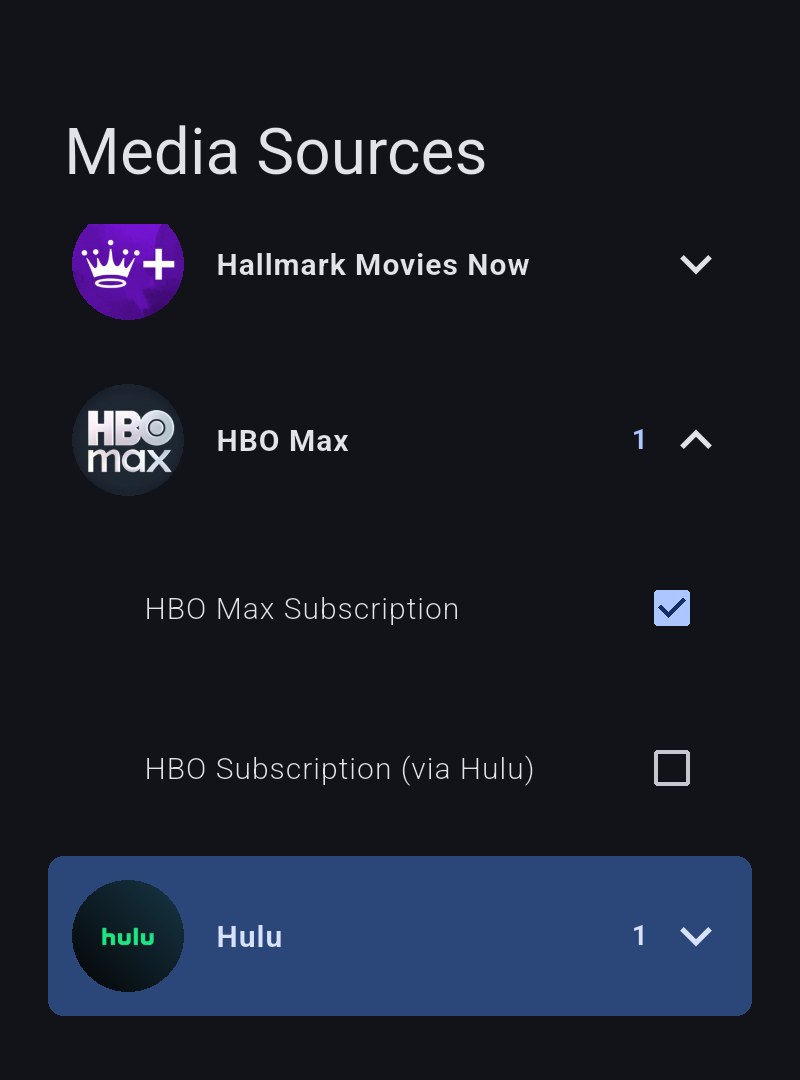
Tick what you pay for
Settings → Media Sources lists every service A to Z. Tick the ones you have, and the way you actually pay for each: HBO Max, for example, has HBO Max Subscription and HBO Subscription (via Hulu). That choice decides which app Play opens.
Enable All Free Sources adds the free services in one go.
Turn on Free to Me
It's in the top bar of the home screen, next to Movies and TV. Every row, from Popular to Westerns, keeps to titles you can watch without paying any more than you already do.
Rent or Buy, right next to it, shows you the opposite when you want it.
Press Play
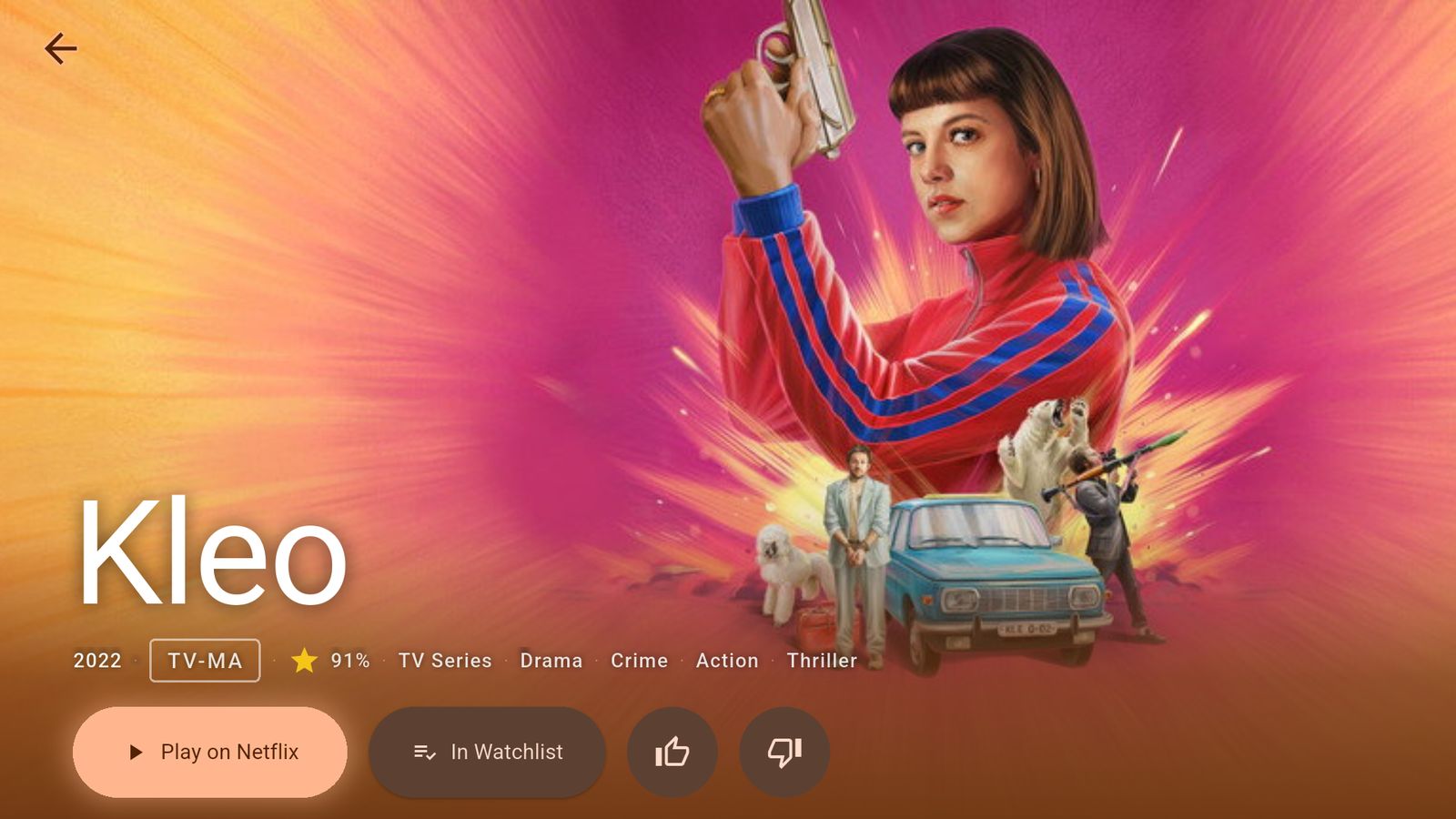
A title's Play button names the service you pay for, and opens that app on that title.
Some apps won't let another app open a specific title (HBO Max is the worst of them). When that happens, Bitflinger TV says so and opens the app's search instead of pretending.
Free to Me, Movies or TV, and Rent or Buy are all free. Score, decade and release-date filters come with a subscription.
More of why I built it
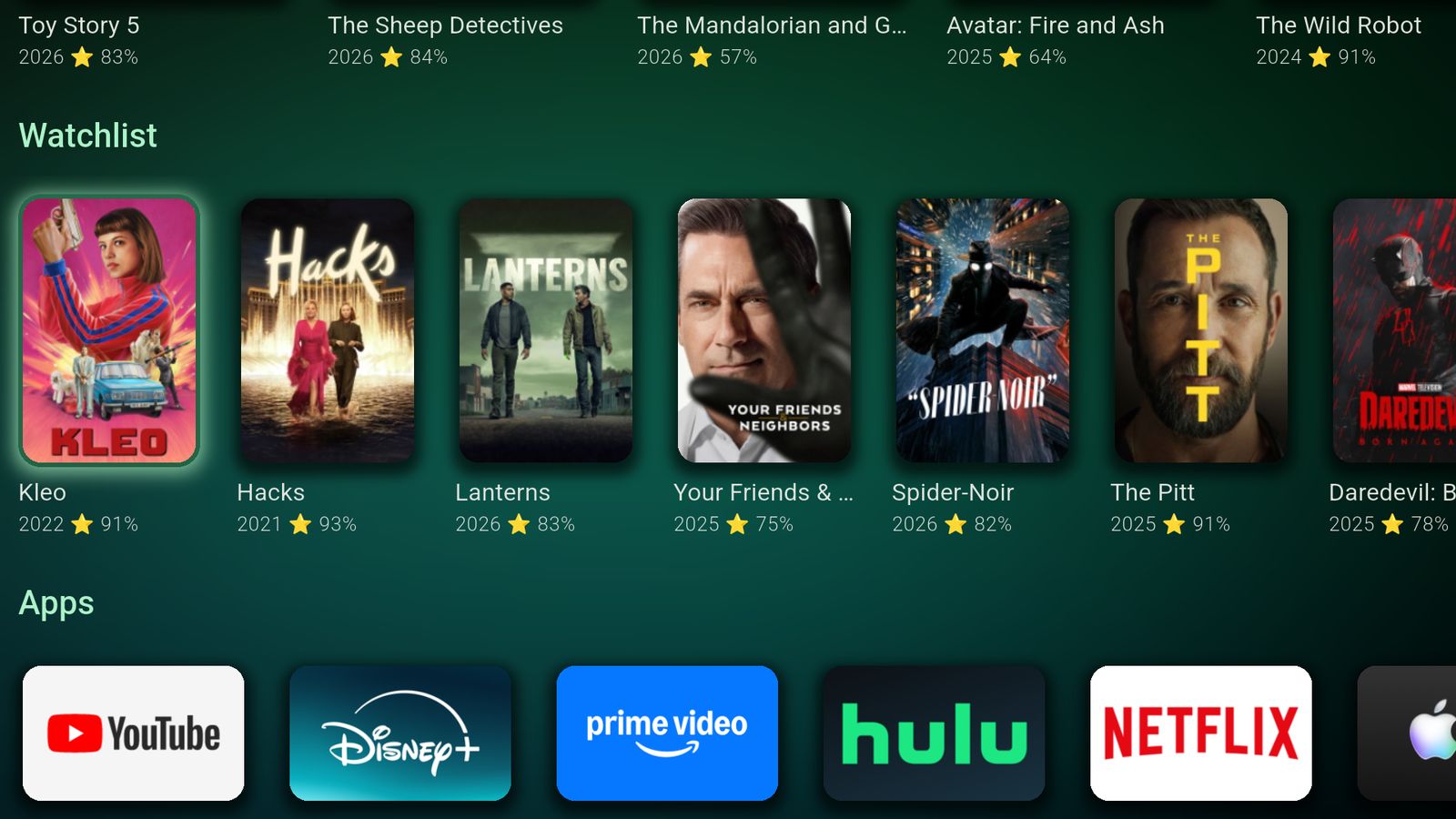
My watchlist used to be a graveyard.
A show hides until its next episode is out, then comes back on its own.
Read more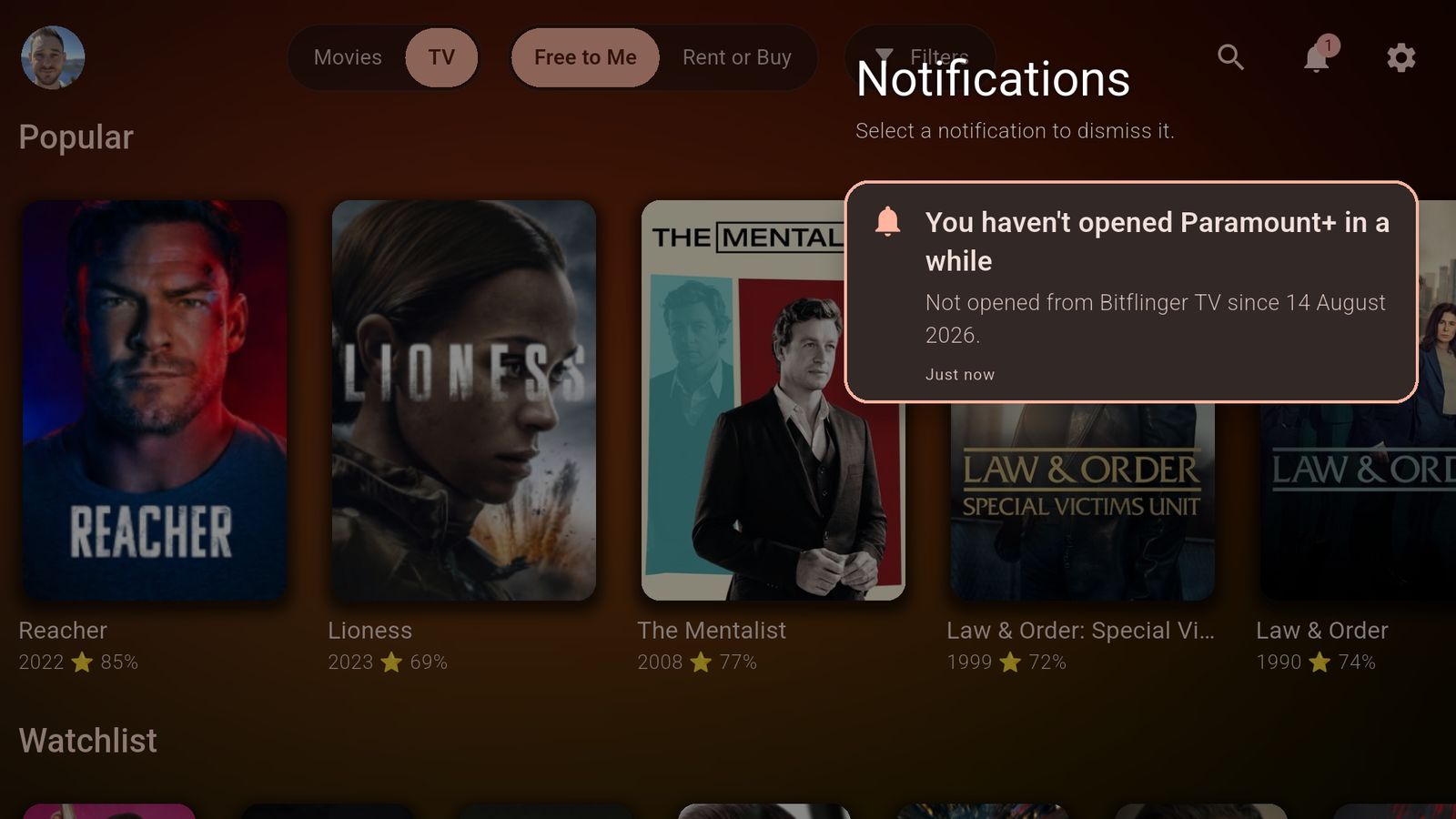
I paid for a service I'd stopped watching.
Once a month it asks about the services you haven't opened.
Read more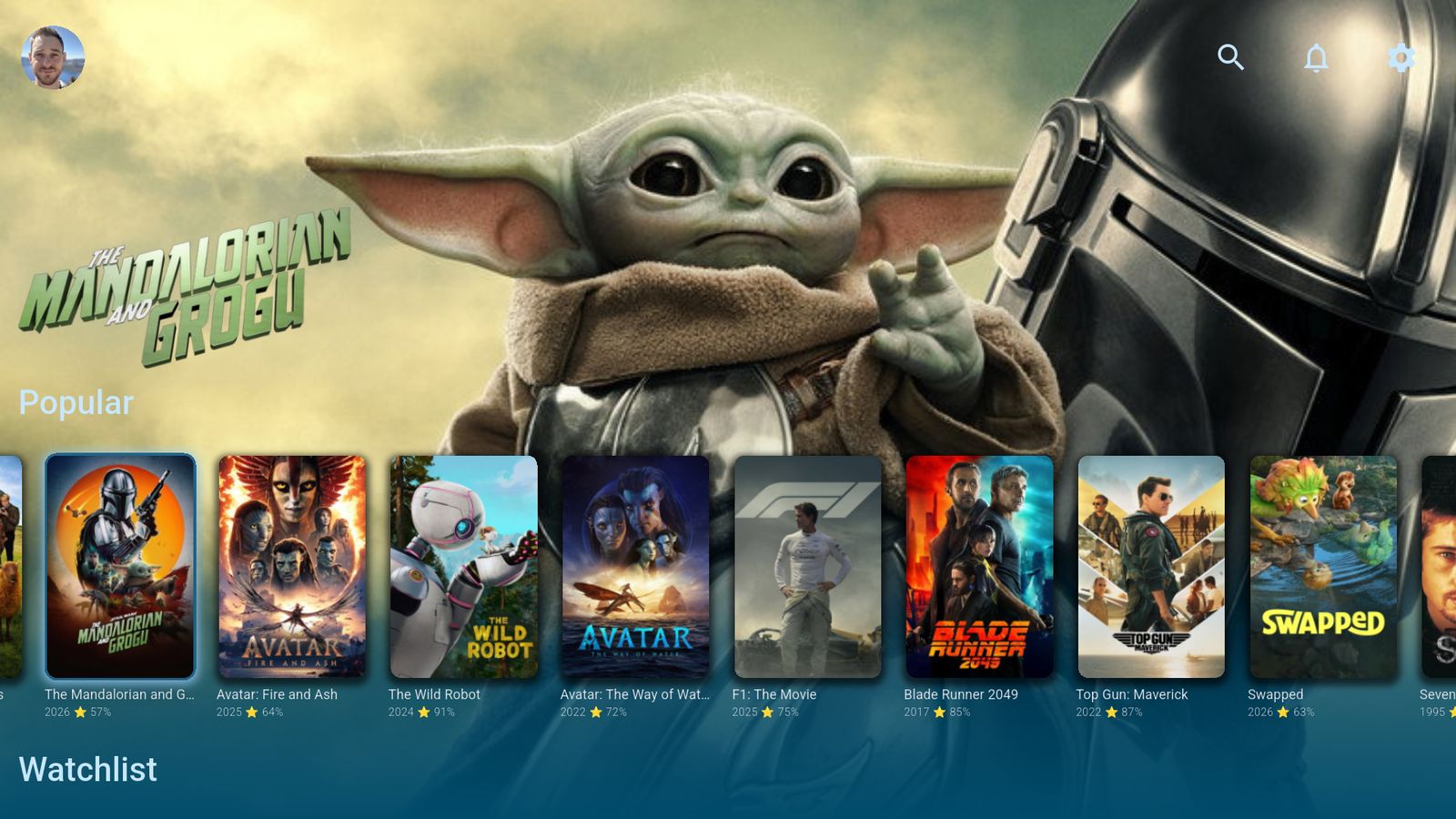
Streaming services can't buy a spot here.
No ads, no paid placement, no finger on the scale.
Read more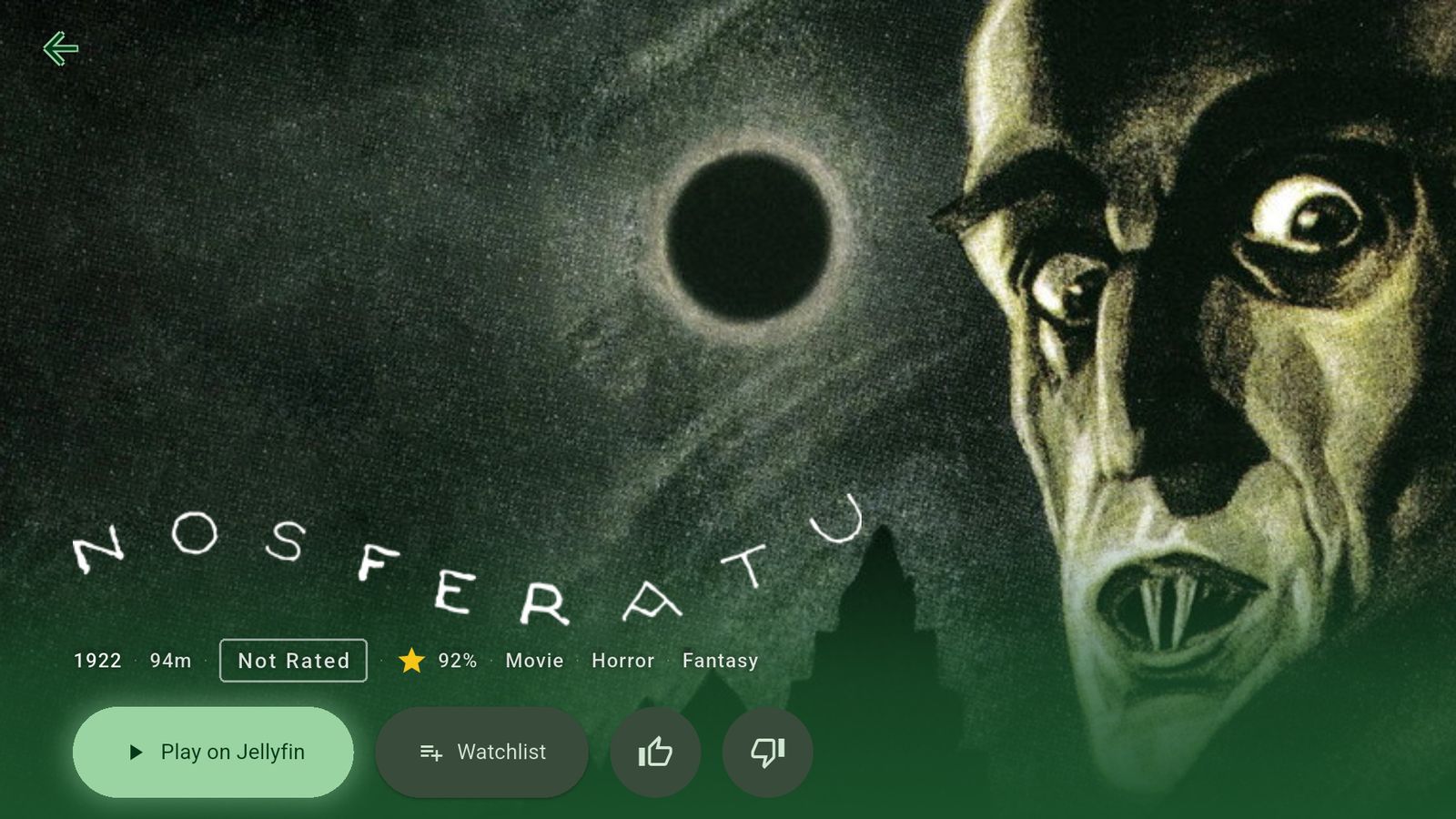
Plex, Jellyfin and streaming. One set of rows.
Your own library next to everything else, and Play goes straight to your server.
Read moreTry it tonight. It's free.
Free on Apple TV, iPhone, iPad, Google TV, Android TV, Android phones and the web.
No card, no countdown. What a subscription adds